Windows 10 and 11Beta release
Your idle screen, running the whole gallery
The same code the gallery shows, packaged as a Windows screensaver. It shuffles through the catalogue with a clock over them, renders entirely offline, installs without administrator rights, and uninstalls in one click.
What you get
One background per technique
Every pattern in the gallery, in the colourway its card shows: CSS, Canvas 2D, Three.js and GLSL shaders. Not the same idea in a dozen colours, and not a folder of videos.
Fully offline
Three.js is bundled, not fetched. Nothing on your screen makes a network request, which matters on a machine sitting locked on a company network.
Shuffles, with a clock
A new background every few minutes, crossfaded, with the time and date over it. Both are optional.
Costs what you allow
Frame rate and pixel density are capped by settings, heavy backgrounds are off by default, and extra monitors can hold a single still frame instead of animating.
No admin rights
Installs into your own AppData folder and registers itself under your user account. Nothing is written to System32 and no elevation prompt appears.
Removes cleanly
One switch stands it down as your screensaver, and two folders hold everything it ever created.
1Download
One zip. It contains the screensaver and every background it shows; there is no installer and nothing is downloaded later.
bgHub-Screensaver-win-x64.zipThis build needs the .NET 9 Desktop Runtime, which most Windows 11 machines already have. If yours does not, one command in Requirements installs it, or you can build the self-contained version that needs nothing at all.
2Unblock and unzip
Windows marks every download as coming from the internet, and a blocked .scr file fails in confusing ways rather than with an error. Unblocking the zip before extracting clears the mark from everything inside it.
# Windows blocks anything downloaded from the internet until you say otherwise.
# Unblock-File is what the "Unblock" checkbox in the file's Properties does.
$zip  = "$HOME\Downloads\bgHub-Screensaver-win-x64.zip"
$dest = "$env:LOCALAPPDATA\Programs\bgHub Screensaver"

Unblock-File $zip
New-Item -ItemType Directory -Force $dest | Out-Null
Expand-Archive -Path $zip -DestinationPath $dest -Force

explorer $dest
Explorer opens on the extracted folder, %LOCALAPPDATA%\Programs\bgHub Screensaver. You should see bgHubScreensaver.scr and a content folder next to it. Keep them together: the screensaver looks for its backgrounds beside itself.
Prefer to do it by hand? Right-click the zip, choose Properties, tick Unblock at the bottom, then extract it anywhere you like.
3Make it your screensaver
Right-click bgHubScreensaver.scr and choose Install. Windows opens its own Screen Saver Settings with bgHub already selected; set the idle time and click OK. That is the whole installation.
Or skip the dialog entirely. This writes the same settings directly and prints what it did:
Start-Process "$env:LOCALAPPDATA\Programs\bgHub Screensaver\bgHubScreensaver.scr" `
  -ArgumentList "/install" -Wait -NoNewWindow
No administrator prompt, by design
A screensaver is a per-user setting. This one registers the path it was extracted to under your own account, so it never asks for elevation and never writes to System32. The cost is that it does not appear in the dropdown list in Windows Screen Saver Settings, which only enumerates the Windows directories. It appears as the selected screensaver instead.
4Choose a background
Right-click bgHubScreensaver.scr and choose Configure. Search or filter the list, and the preview on the right renders the highlighted background live: it is the same engine and the same code the screensaver runs, so what you see is what you get.
Start-Process "$env:LOCALAPPDATA\Programs\bgHub Screensaver\bgHubScreensaver.scr" `
  -ArgumentList "/c" -NoNewWindow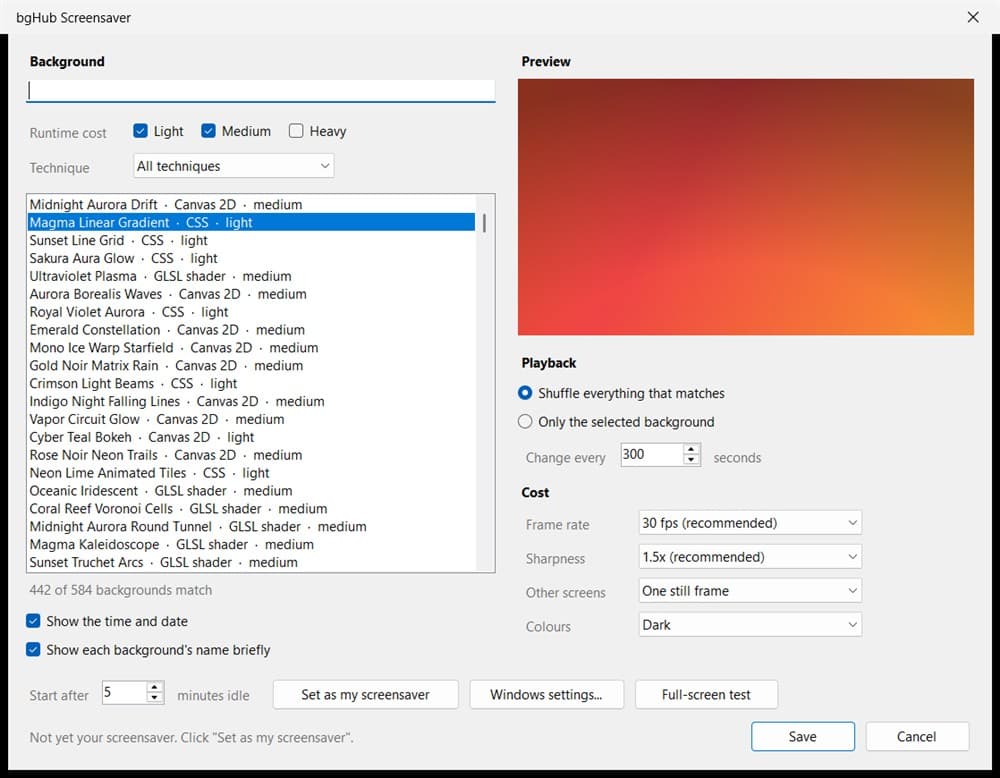
Leave it on Shuffle for a new background every few minutes, or pick Only the selected background to pin one. Every option is explained in what each setting does.
Found one you want on a web page instead? The name shown over the screensaver is the same title used in the gallery, where the source code is.
5Check it works
Three ways, from cheapest to most convincing. Start with the built in self test: it checks the browser engine, the content folder, the bundled copy of Three.js, and then actually renders a background off-screen and reports which one.
Start-Process "$env:LOCALAPPDATA\Programs\bgHub Screensaver\bgHubScreensaver.scr" `
  -ArgumentList "/selftest" -Wait -NoNewWindow
[PASS] WebView2 runtime present - 150.0.4078.105 [PASS] content folder present - ...\content [PASS] manifest.json parses - ... backgrounds, rev ... [PASS] three.js bundled - vendor/three.module.min.js [PASS] settings round-trip - ...\settings.json [PASS] player renders a background - ok: ribbons-bands-calm-royal-violet canvas 1262x673 [PASS] registered as Windows screensaver - ...\bgHubScreensaver.scr All checks passed.
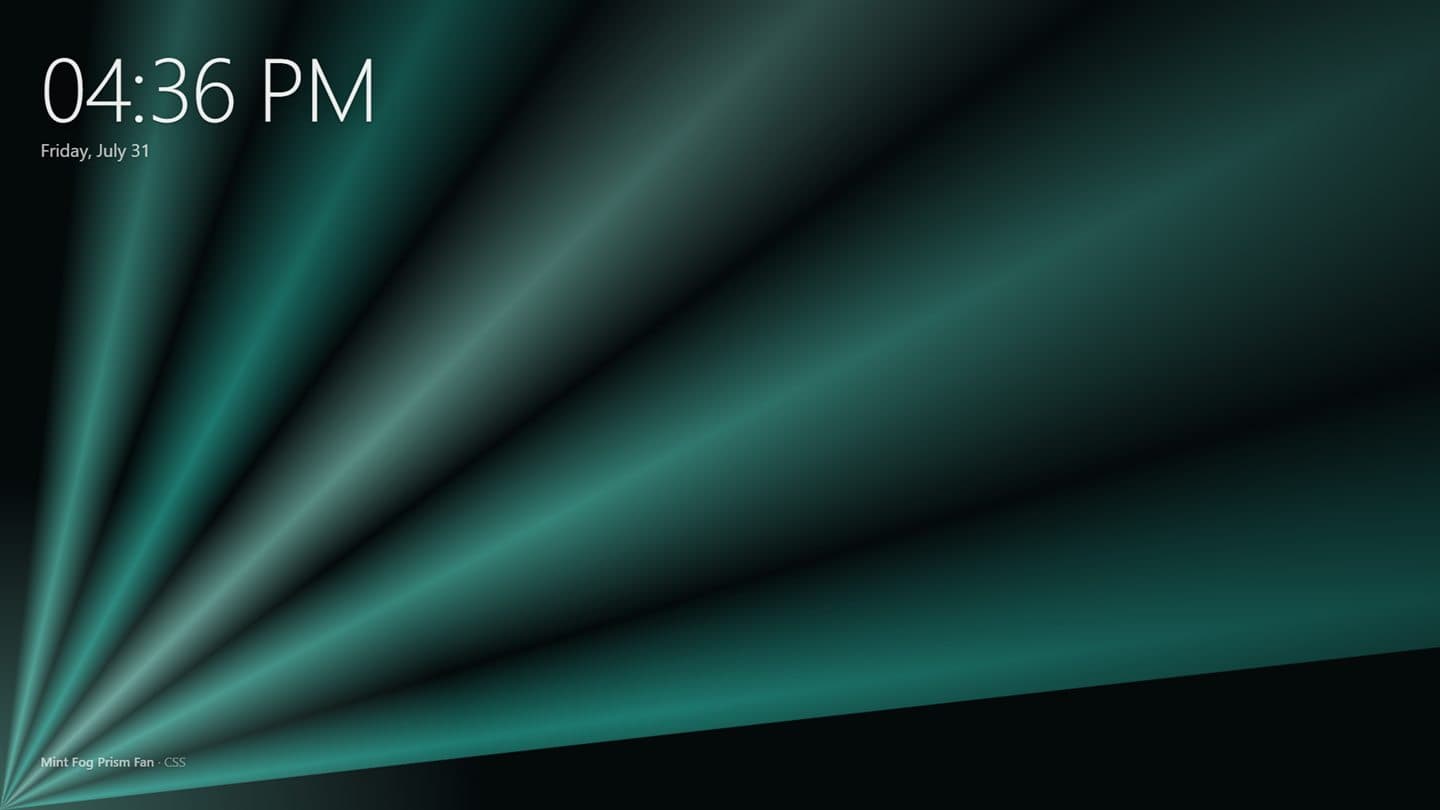
Then click Full-screen test in the settings dialog, which runs the real thing on every display exactly as the idle timeout would. Move the mouse to end it. It should look like this:
verify.ps1.Finally, leave the machine alone for the idle time you set. If the screensaver ever does something unexpected, every launch is logged to %LOCALAPPDATA%\bgHub\Screensaver\log.txt, including which mode Windows asked for and what dismissed it.
What each setting does
All of it lives in the Configure dialog, and all of it is stored in %LOCALAPPDATA%\bgHub\Screensaver\settings.json as plain text you can read.
- Runtime cost
- Which backgrounds may appear, by how expensive they are to render. Light and Medium are on by default; Heavy is the group that keeps a laptop fan running, so you opt into it.
- Technique
- Narrow the list to CSS, Canvas 2D, Three.js or GLSL. Useful on an old machine, where restricting it to CSS removes the GPU from the picture almost entirely.
- Shuffle / only the selected background
- Rotate through everything matching your filters, or pin the one background highlighted in the list.
- Change every
- Seconds each background is shown before the crossfade. Five minutes is the default; anything from 10 seconds to an hour is accepted.
- Frame rate
- The cap handed to the background itself, not a vsync setting. 30 fps looks identical to 60 on a screensaver and asks half as much of the machine.
- Sharpness
- A cap on device pixel ratio. On a 4K display, 1x renders a quarter of the pixels of 2x for a difference you cannot see from across a room.
- Other screens
- What non-primary displays do. Black is free, one still frame costs a couple of seconds of rendering and then nothing, and full animation multiplies the whole cost by the number of monitors.
- Colours
- Every background ships a dark and a light scheme. Dark is the default rather than following Windows, because an unattended machine at night is a room light.
- Show the time and date
- A large clock in the top-left corner of the primary display only.
- Show each background's name
- The title and technique in the bottom-left for a few seconds after each change. How you find out what you are looking at when you want to use it on a page.
- Start after N minutes idle
- Windows' own idle timeout, set from here so you do not have to open two dialogs. Shared with every other screensaver on the machine.
Requirements
- Windows 10 (64-bit) or Windows 11. x64 only; there is no ARM64 build yet.
- Microsoft Edge WebView2 runtime. Preinstalled on Windows 11 and on any machine with a current Edge. The self test reports the version it found.
- .NET 9 Desktop Runtime, for this small download only:
winget install --id Microsoft.DotNet.DesktopRuntime.9 --source wingetTo avoid that dependency, build the self-contained version instead. It carries its own runtime, so it needs nothing preinstalled, at the cost of being a considerably larger download.
git clone https://github.com/goldynlabs/project-bg
cd project-bg/frontend && npm install
cd ../screensaver/windows
.\build.ps1 -Flavor selfcontained -Zip
Either build passes the same verification script, screensaver/windows/verify.ps1, which drives every mode Windows can ask for and asserts what should have happened.
If something goes wrong
›The screen goes black instead of showing a background
›Double-clicking the file starts the screensaver instead of opening its options
.scr file is Open, and Open means run. Right-click the file and choose Configure. Move the mouse to get out of it.›It is not in the dropdown in Windows Screen Saver Settings
.scr files in the Windows directories, which is why an installer normally needs administrator rights. This one registers itself directly instead, so it shows up as the selected entry rather than as a choice in the list. If the box shows bgHub Screensaver, it is active.›The preview box in Windows Screen Saver Settings is black
%LOCALAPPDATA%\bgHub\Screensaver\log.txt records every launch with the mode Windows asked for, which distinguishes a preview that failed from one Windows never requested.›The fan spins up
›It will not go away when I move the mouse
›Windows says the app cannot start, something about .NET
Removing it
Nothing is installed system-wide, so there is nothing in Add or Remove Programs. Two folders and one registry value, and this clears all three:
# 1. stop being the screensaver
Start-Process "$env:LOCALAPPDATA\Programs\bgHub Screensaver\bgHubScreensaver.scr" `
  -ArgumentList "/uninstall" -Wait -NoNewWindow

# 2. delete the program and its settings
Remove-Item -Recurse -Force "$env:LOCALAPPDATA\Programs\bgHub Screensaver"
Remove-Item -Recurse -Force "$env:LOCALAPPDATA\bgHub"
Only want a different screensaver? Open Windows Screen Saver Settings and pick one. bgHub stops being used the moment you do; it leaves nothing running.
How it works
Worth knowing, because it explains both the strengths and the limits. Every background in the gallery already ships as a standalone HTML page sized to the viewport. The screensaver is that, unchanged: an export step copies one per pattern into a folder, replaces the Three.js import that pointed at a CDN with a bundled copy, and adds a small script ahead of each page that caps its frame rate and pixel density.
The Windows side is a small host that creates one borderless window per display and points a WebView2 at a single local page, which does the shuffling, the crossfade and the clock. The host answers the three command lines Windows gives a screensaver: /s to run fullscreen, /pto draw inside the settings page's preview box, and /c to open its options.
The consequence is that a change to how the screensaver behaves is a change to one HTML file, not a rebuild for each operating system, and that new backgrounds arrive by re-running the export rather than by writing any native code.
macOS
Not yet. The content side is done and portable, so a macOS build is a.saver bundle wrapping a WKWebView around the same page. The open question is whether WebGL runs inside the sandboxed process macOS hosts screensavers in; if it does not, the CSS and Canvas backgrounds still work, which is most of the catalogue. That needs a Mac to answer honestly, so it is not promised here.